Product Overview
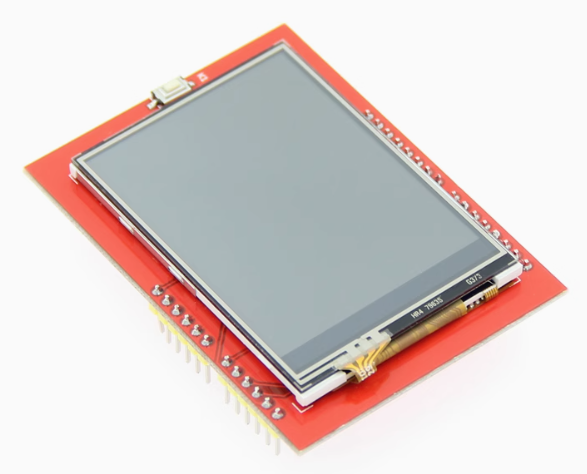
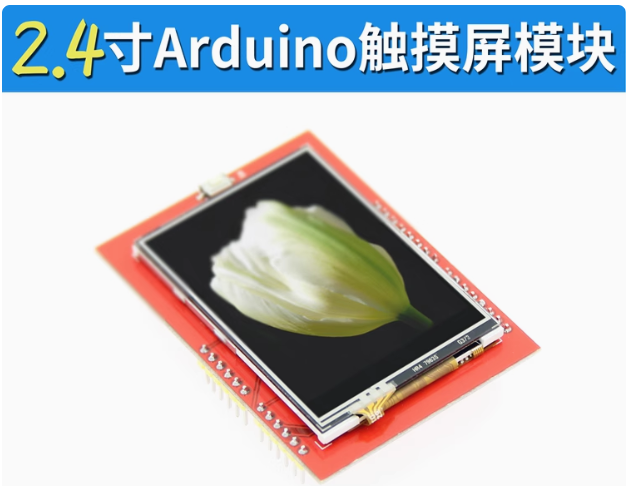
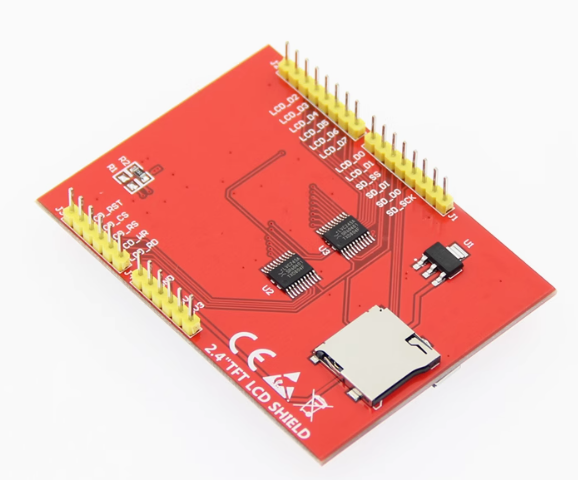
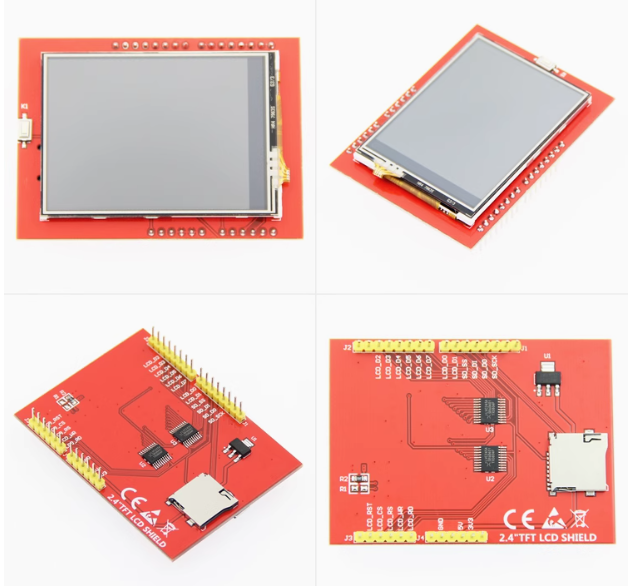
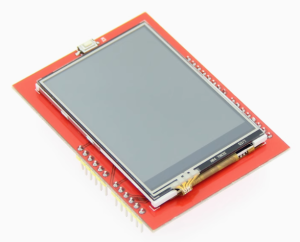
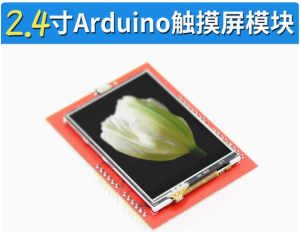
The 2.4 inch TFT LCD Touch Screen Module is a vibrant, full-color display shield designed to seamlessly integrate with your Arduino projects. This plug-and-play module stacks directly onto Arduino UNO, Mega 2560, and Leonardo boards, transforming your development board into a powerful visual interface without any soldering or breadboard wiring.
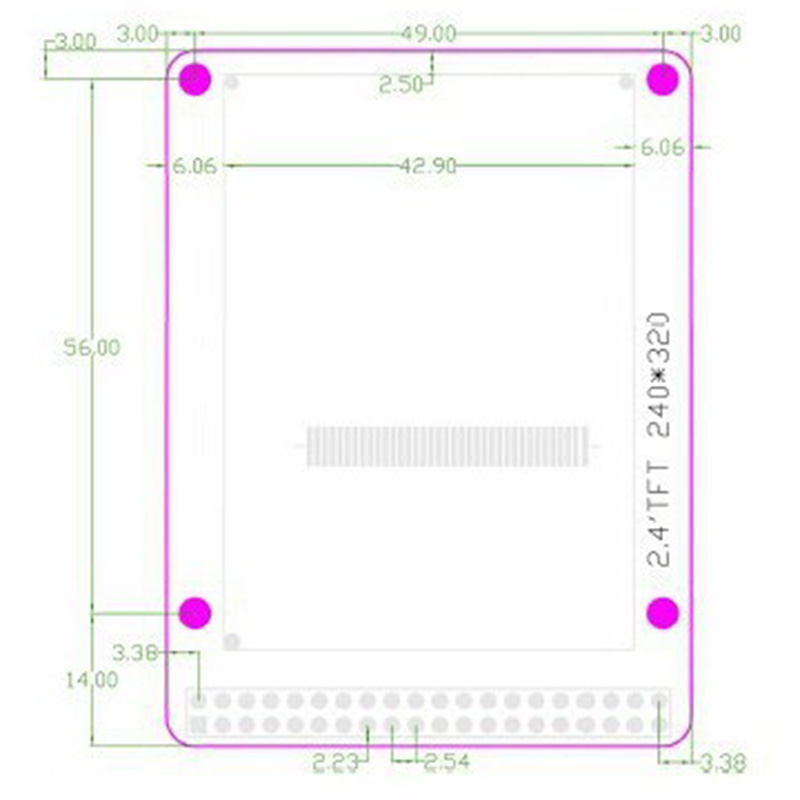
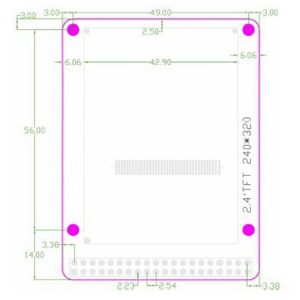
Powered by the advanced ST7789V driver IC, this display delivers a crisp 320×240 pixel resolution (QVGA) with 65K (or 262K) true colors. The IPS panel technology provides wide 80-degree viewing angles from all directions, ensuring clear visibility even in challenging lighting conditions.
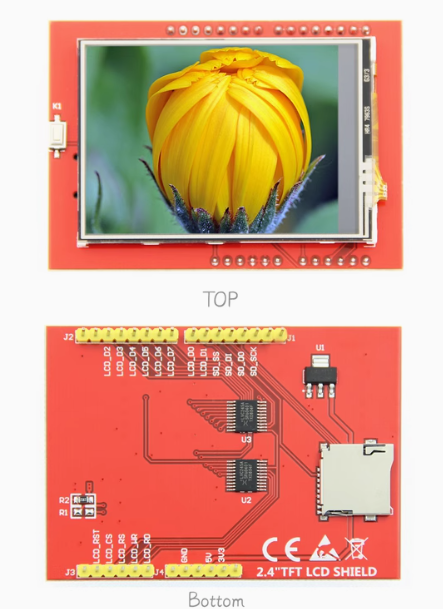
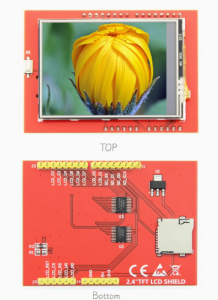
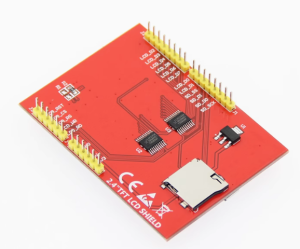
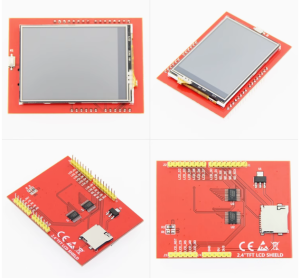
The shield format is incredibly convenient—it features 16 pins that line up perfectly with the Arduino’s female headers. It occupies the entire board area, but leaves essential pins like D2, D3, A4, and A5 accessible for additional sensors. An onboard microSD card slot allows you to load images, fonts, and log data, while the resistive touchscreen, complete with a stylus, enables intuitive user interaction.
Key Features
-
Plug-and-Play Shield Design: Directly stacks onto Arduino UNO, Mega 2560, and Leonardo – no soldering or wiring required
-
2.4 Inch TFT Display: 240×320 pixel resolution with 65K/262K true colors for vibrant graphics
-
ST7789V Driver IC: High-performance display controller with efficient SPI interface
-
IPS Technology: Wide viewing angles (80° in all directions) for better visibility
-
Resistive Touchscreen: XPT2046 touch controller with included stylus pen for precise input
-
Onboard MicroSD Card Slot: Convenient storage for images, fonts, and data logging
-
Wide Voltage Compatibility: 5V/3.3V tolerant with onboard level shifting – works with both 5V and 3.3V logic
-
Available I/O Pins: After mounting the shield, pins D2, D3, A4, and A5 remain free for additional sensors
-
PWM Backlight Control: Adjustable brightness via software control (D9 pin)
Technical Specifications
Pinout & Interface Guide
The shield is designed to stack directly onto your Arduino. However, because different manufacturers sometimes use varied pin configurations, it is critical to verify the connections on the back of your specific board.
Standard Interface Pinout (Most Common Configuration)
⚠️ Important Warning for MEGA 2560 Users: If you are using an Arduino Mega 2560, the SPI pins are located on different pins than the Uno. The shield uses the ICSP header (the 2×3 pin header near the processor) for SPI communication. On the Mega, make sure the shield is aligned so these pins make contact, or ensure your library defines the correct pins (SCK=52, MOSI=51, MISO=50).
Usage Guide
Hardware Setup (Plug-and-Play)
-
Mount the Shield: Ensure your Arduino is unpowered (USB disconnected). Carefully align the 16-pin female headers of the shield with the male headers on your Arduino and press down firmly until seated evenly.
-
Insert SD Card (Optional): If you plan to display images from storage, insert a FAT16/FAT32 formatted microSD card into the slot on the back of the shield.
-
Connect Power: Connect your Arduino to your computer via USB. The shield will draw power from the 5V pin.
Software Setup (Arduino IDE)
You need two libraries to drive the display: a core graphics library and a hardware-specific driver.
Option 1: Using the TFT_eSPI Library (Recommended for Performance)
The “TFT_eSPI” library by Bodmer is the most optimized and widely recommended library for these displays, though it requires editing a configuration file.
-
Install the Library: Open Arduino IDE → Sketch → Include Library → Manage Libraries. Search for “TFT_eSPI” and install it.
-
Configure the Library:
-
Navigate to your Arduino Libraries folder (usually Documents/Arduino/libraries).
-
Go into the TFT_eSPI folder and open the User_Setup_Select.h file.
-
Comment out the line that says #include <User_Setup.h>.
-
Add the line: #include <User_Setups/Setup24_ST7789.h> (This selects the pre-configured setup for ST7789 240×240 screens).
-
Edit the Pin Configuration (If necessary):
-
If you need to edit the pins, open the User_Setup.h file (or the specific setup file you selected).
-
Look for the section defining TFT_CS, TFT_DC, TFT_RST, TFT_MOSI, and TFT_SCLK.
-
Adjust the pin numbers to match your hardware if your shield’s pinout differs from the default.
Option 2: Using Adafruit Libraries (More Universal)
If you prefer a more straightforward approach:
-
Install Libraries: In the Library Manager, install “Adafruit GFX Library” and “Adafruit ST7735 and ST7789 Library” (This library supports ST7789 drivers).
Basic Test Example (Arduino Sketch)
The following code works with the Adafruit libraries. Once uploaded, the screen should display colored graphic primitives (lines, circles, text).
#include <Adafruit_GFX.h>
#include <Adafruit_ST7789.h>
#include <SPI.h>
#define TFT_CS 10
#define TFT_RST -1
#define TFT_DC 7
Adafruit_ST7789 tft = Adafruit_ST7789(TFT_CS, TFT_DC, TFT_RST);
void setup() {
Serial.begin(9600);
Serial.println("Starting Display Test");
tft.init(240, 320);
tft.setRotation(1);
tft.fillScreen(ST77XX_BLACK);
tft.fillRect(20, 20, 200, 100, ST77XX_RED);
tft.setTextSize(2);
tft.setTextColor(ST77XX_WHITE);
tft.setCursor(40, 60);
tft.print("Hello Arduino!");
}
void loop() {
}
Calibrating the Touchscreen
Before using the touchscreen, you must calibrate it to map the raw ADC (Analog-to-Digital Converter) readings to the physical screen coordinates.
-
Use the XPT2046_Touchscreen library by Paul Stoffregen (installed via Library Manager).
-
Run a calibration sketch (often included as an example like calibrate.ino).
-
The program will ask you to press crosses on the screen.
-
Record the min/max X/Y raw values printed in the Serial Monitor.
-
Integrate these calibration values (e.g., TS_MINX, TS_MAXX) into your project code to convert raw touches into accurate coordinates.
Q: Why is the screen white when I plug it in?
Usually, this means the backlight is on (power is connected) but the SPI communication failed.
-
Check Pins: Verify the shield is fully seated. If using a Mega, double-check the ICSP header connections.
-
Library Configuration: You must select the correct driver (ST7789) in your library (User_Setup.h).
-
5V Logic: Could cause signal distortion. Many shields are 3.3V logic only.
Q: Can I use this on an Arduino Mega 2560?
Yes. The shield will physically fit over the USB port and ICSP header. However, SPI pins are different. Use the ICSP pins (SCK, MOSI, MISO). In the code, you may need to specify MOSI: 51, MISO: 50, SCK: 52.
Q: Can I use this with an ESP32?
Yes, but with caution. The shield is physically designed for Arduino Uno/Mega. While the logic works at 3.3V, you must manually wire jumpers from the ESP32 to the display’s pins. You cannot just “plug it in.”
Q: What is the microSD slot for?
It is for data storage. You can store bitmap images (.bmp) to display photos, save configuration files, or log sensor data. The SD card uses the same SPI bus as the screen, so you must switch CS pins in code.
Q: Does it support the Arduino Leonardo?
Arduino Leonardo users can use this shield if they install the MCUFRIEND_kbv library, which can handle the different SPI pin mapping on the Leonardo board.
Q: The screen lights up but displays nothing.
Usually a library issue. Try the Adafruit ST7735/ST7789 library. Ensure you are using tft.init(240, 320);, not tft.begin();
Q: The colors are inverted or corrupted (wrong colors).
This indicates the library is sending the correct data format for a different controller. Try changing the initialization in the library source. This often requires a swapBytes setting.